|
|
|
CSS - Cascading Style Sheets
CSS stands for Cascading Style Sheets. CSS can be used to style your webpages and control the look and feel of the website. CSS saves a lot of time in formatting the text of your website.
UNIT II CONTENTS
CSS Introduction, CSS Properties - Controlling Fonts, CSS Properties - Text Formatting , Selectors - id and class, Pseudoclasses, CSS for Links, CSS for Lists, CSS for Tables , Selectors - id and class, Pseudoclasses, CSS for Links, CSS for Lists, CSS for Tables
CSS Introduction
- CSS Stands for Cascading Style Sheets. It is a technology used for webpage formatting and positioning of elements in a webpage.
- CSS was found out in the year 1994.
- CSS works in conjunction with HTML to greatly increase the appearance of the webpages.
- Using CSS, you will be able to:
- Add new look to your old HTML pages
- Completely re-style your website with only a few changes to your CSS code.
- Save lot of time in formatting the text and positioning the elements. All the formatting can be removed from the HTML code and can be defined in the CSS code.
- Give additional power to HTML tags.
- CSS can help you great especially when you are developing a website with multiple pages and you want all of them to have the same colours, formatting etc.
For example, you want all the paragraphs in your website to look blue in colour, with font 'Arial' and size 12px. You need to explicitly define the font tag inside every paragraph of all the pages of the website.
If later, you want to change the colour or size, you need to make changes in all the paragrap tags. Instead, you can write a small CSS code to control the paragraph tag and link it to all pages so that a single change in the CSS code can control all paragraphs in the website.
- The basic syntax of a CSS rule is as follows:
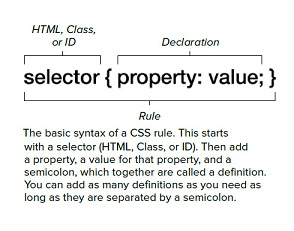
Example: p {color: green; font-family: Arial;} - 'p' is the selector, 'color' and 'font-family' are the properties and 'green' & 'Arial' are their values respectively.
- Styles can be specified inside the HTML element (Inline Style Sheet), in the HEAD section of the html page (Internal Style Sheet) or in an external CSS file (External Style Sheet). In other words, there are three types of CSS - Inline, Internal & External.
- Inline Style Sheet:
Inline style, though not so useful, can be used in the tag directly using the style attribute. This applies style only to the tag in which the inline style is defined. The following is the example:
- Internal Style Sheet:
Internal Style Sheet is used when you want to define CSS for a single page. You define the internal styles in the HEAD section (using <STYLE> tag) of the page as follows:
- External Style Sheet:
External Style Sheet is extremely useful when you want to define CSS for the entire website.
You can define a single CSS page (.css file) with all the css code and link it to all the html pages using the <LINK> tag in the HEAD section.
Sample Usage:
style.css file:
- If a style is defined in more than one location or if more than one style is specified for a HTML element, all the styles will "cascade" into a new "virtual" style sheet and based on the type of style sheet, the style is applied.
The following is the priority rule used while applying style in such cases.
- Inline Style Sheet (Highest Priority)
- Internal Style Sheet
- External Style Sheet
- Browser Default Style (Lowest)
- CSS Comments: Comments in CSS code can be written between /* and */.
CSS Properties Complete Reference:
CSS Properties - Controlling Fonts
- CSS Font Properties define the size, font family, boldness, and style of a text.
- CSS Font Properties:
| Property | Descrption | Sample Usage |
| font |
Sets all font properties in one declaration. |
font: italic 15px Arial, Georgia; |
| font-family |
Specifies the font family for the text. |
font-family: Arial, Georgia; |
| font-size |
Sets the font size for different HTML elements. |
font-size: 15px; or font-size:150%; |
| font-style |
Specifies the font-style for text. |
font-style: italic; or font-style:normal; |
| font-variant |
Specifies whether a text should be displayed in small caps font or not. |
font-variant: small-caps; or font-variant:normal; |
| font-weight |
Specifies the font weight or boldness of text. |
font-weight: bold; or font-weight:800; |
| font-stretch |
Allows you to control the width of the letters in a font (not altering the spaces). |
font-stretch: wider; or font-stretche:condensed; |
| font-size-adjust |
Allows you to alter the aspect ratio of the size of characters of the font. |
font-size-adjust: 0.73; or font-size-adjust: none; |
- CSS 'font' Property:
- The 'font' property is used to set all the font properties in one declaration. For example, p { font: italic 12px Arial;}
- The properties can be set in the following order: 1) font-style 2) font-variant 3) font-weight 4) font-size/line-height 5) font-family
- The mandatory properties are font-size and font-family.
- CSS 'font-family' Property:
- The 'font-family' property specifies the font-name to be used for the element. For example, h1 { font-family: Arial;}
- You can specify more than one font name for an element (separated by commas). If the first font is not supported by the browser, it used the second font and so on. For example, p {font-family: Arial, Times New Roman, Helvetica;}
- There are 2 types of family names -
- family-name: The specific name of a font such as "Arial", "Courier New", "Times New Roman" etc.
- generic-family: The name of a generic family such as "serif", "sans-serif", "cursive", "fantasy", "monospace".
- While giving values to 'font-family' property, use a list of family-names in the beginning and always use a generic-family towards the end. If the font-families are not supported by the browser, it picks a similar font in the generic family specified.
For example, p {font-family: Arial, Times New Roman, Helvetica, serif;}
- CSS 'font-size' Property:
- The 'font-size' property can be used to set the size of a font. For example, h3 { font-size: 150%;}
- Possible values of 'font-size' property:
| Value | Sets Font Size To | Sample Usage | Sample Output |
| xx-small |
Extra Extra Small Size (Extremely small) |
<div style='font-size: xx-small;'>Hello</div> |
Hello |
| x-small |
Extra Small Size |
<div style='font-size: x-small;'>Hello</div> |
Hello |
| small |
Small Size |
<div style='font-size: small;'>Hello</div> |
Hello |
| medium |
Medium Size. This is default. |
<div style='font-size: medium;'>Hello</div> |
Hello |
| large |
Large Size |
<div style='font-size: large;'>Hello</div> |
Hello |
| x-large |
Extra Large Size |
<div style='font-size: x-large;'>Hello</div> |
Hello |
| xx-large |
Extra Extra Large Size |
<div style='font-size: xx-large;'>Hello</div> |
Hello |
| smaller |
Smaller Size than parent element |
<div style='font-size:large;'>Parent
<div style='font-size: smaller;'>Child</div>
</div> |
|
| larger |
Larger Size than parent element |
<div style='font-size:large;'>Parent
<div style='font-size: larger;'>Child</div>
</div> |
|
| length |
Fixed size (in px, cm, in, mm etc) |
<div style='font-size: 12px;'>Hello</div> |
Hello |
| % |
Percent of the parent elements font size |
<div style='font-size:large;'>Parent
<div style='font-size: 50%;'>Child</div>
</div> |
|
- CSS 'font-style' Property:
- The 'font-style' property specifies the font-style for the text. For example, p { font-style: italic;}
- The possible values of this property are:
- normal (default) - <span style='font-style:normal;'>sample</span> Output: sample
- italic - <span style='font-style:italic;'>sample</span> Output: sample
- oblique - <span style='font-style:oblique;'>sample</span> Output: sample
- The mandatory properties are font-size and font-family.
- CSS 'font-variant' Property:
- The 'font-variant' property specifies whether the text should be displayed in 'Small Caps" or not. For example, p { font-variant: small-caps;}
- The possible values of this property are:
- normal (default) - <span style='font-variant:normal;'>sample</span> Output: sample
- small-caps - <span style='font-variant:small-caps;'>sample</span> Output: sample
- The value 'small-caps' will convert the text to upper-case. But, they are smaller in size compared to the actual upper case letter.
- CSS 'font-weight' Property:
- The 'font-weight' property specifies how thick or thin the characters in text should be displayed. For example, p { font-weight: bold;}
- Possible values of 'font-weight' property:
| Value | Description | Sample Usage | Sample Output |
| normal |
Displays the text in normal characters. This is default. |
<div style='font-weight: normal;'>Hello</div> |
Hello |
| bold |
Displays the text in thick characters. |
<div style='font-weight: bold;'>Hello</div> |
Hello |
| bolder |
Displays the text in thicker characters. |
<div style='font-weight: bolder;'>Hello</div> |
Hello |
| lighter |
Displays the text in thinner / lighter characters. |
<div style='font-weight: lighter;'>Hello</div> |
Hello |
| number - 100, 200, 300 ... 900 |
100 is thinnest & 900 is thickest
400 is normal & 700 is bold |
<div style='font-weight: 100;'>Hello</div>
<div style='font-weight: 900;'>Hello</div> |
Hello
Hello |
- CSS 'font-stretch' Property:
- The 'font-stretch' property allows you make text wider or narrower. For example, p { font-stretch: condensed;}
- 'font-stretch' is a CSS3 property and is not supported by major part of browsers.
- The possible values of this property are:
wider|narrower|ultra-condensed|extra-condensed|condensed|semi-condensed|normal|semi-expanded|expanded|extra-expanded|ultra-expanded;
- The value 'small-caps' will convert the text to upper-case. But, they are smaller in size compared to the actual upper case letter.
- CSS 'font-size-adjust' Property:
- The 'font-size-adjust' property allows display consistent font-size irrespective of the font-family. For example, p { font-size-adjust: 0.75;}
- The size of text displayed for a particular font-size changes according to the font-family used. If you want to have the same font-size even if the specified font is not available, 'font-size-adust' can be very handy.
- 'font-stretch' is a CSS3 property and is supported only by Mozilla Firefox.
- The possible values of this property are:
- number: Defines the aspect value to use.
- none: default, no font size adjustment.
CSS Properties - Text Formatting
- Apart from several CSS properties that define the font, there are several text properties that define the formatting or appearence of the text.
- CSS Text Properties:
| Property | Descrption | Usage |
| color |
Sets text color for an element |
Values: color-name | hexadecimal string | rgb(red,green,blue values)
color: green;
color: #00ff00;
color: rgb(0,255,0);
|
| direction |
Specifies the text direction or writing direction. |
Values: ltr | rtl
direction: ltr; (left to right) - default
direction: rtl; (right to left)
|
| letter-spacing |
Increases or decreases the space between characters in text. |
Values: normal | (+/-) number
letter-spacing: normal; (no space - default)
letter-spacing: 3px;
letter-spacing: -2px;
|
| line-height |
Specifies the line height or the space between lines in a paragraph. |
Values: normal | number | length | %
line-height: 2; (double spacing)
line-height: 150%; (1.5 spacing)
line-height: 15px; (15px space betwen lines)
|
| text-align |
Specifies the horizontal alignment of text in an element. |
Values: left (default) | right | center | justify
text-align: right; (right aligned)
line-height: justify; (Either sides of text are equally aligned - Justified)
|
| text-decoration |
Specifies the decoration added to the text. |
Values: none | underline | overline | line-through | blink
text-decoration: none; (no decoration - removes underline for hyperlink)
text-decoration: line-through; (text will be striked off)
text-decoration: blink; (text blinks - works only in few browsers)
|
| text-indent |
Specifies the indentation of the first line of a paragraph or text. |
Values: length (px, in, cm etc) | %
text-indent: 20px; (1st line text starts after 20px space)
text-indent: 50%; (1st line text starts from middle)
|
| text-transform |
Specifies whether the text should be uppercase or lowercase or capitalized. |
Values: none | uppercase | lowercase | capitalize
text-transform: none; (No change in case)
text-transform: uppercase; (Transforms all characters to uppercase)
text-transform: capitalize; (Transforms all first characters of all words to uppercase)
|
| vertical-align |
Sets the vertical alignment of an element. |
Values: length | % | baseline | sub | super | top | text-top | middle | bottom | text-bottom
vertical-align: 10px; (Raises the element by 10px up. -ve value lowers.)
vertical-align: 10%; (Raises the element by 10%.)
vertical-align: sub; (Aligns the text as it is a subscript)
vertical-align: baseline; (Aligns the text with the baseline of parent element. This is default.)
|
| white-space |
Specifies how the white space inside the element is handled |
Values: normal (default) | nowrap | pre | pre-line | pre-wrap
white-space: nowrap; (Text will never wrap up until a <BR> tag.)
white-space: pre; (Acts like a <PRE> tag & white spaces are preserved.)
white-space: pre-line; (Text will wrap when necessary and on line breaks. White spaces not preserved.)
white-space: pre-wrap; (Text will wrap when necessary and on line breaks. White spaces preserved.)
|
| word-spacing |
Increases or decreases the white space between the words |
Values: normal (default) | length (+/-, px, in, cm, etc)
word-spacing: normal; (Normal space between words.)
word-spacing: 20px; (Gives 20px space between the words.)
|
Selectors - class and id
- When a CSS rule is defined for a HTML tag, there will be only one style for each tag. But, what if, you want a HTML tag (say <p>) to display in different styles? To solve this problem, CSS is provided with selectors 'class' and 'id'.
- The 'class' and 'id' selectors can be used to add different styles to a single HTML tag.
- 'class' selector:
- The class selector is used to specify a style for a group of elements (say a class).
- You can specify certain HTML elements as a class / group using the attribute 'class'. Example, <p class='one' > This is paragraph. </p>
- The style can be defined for each class in the CSS code by using the '.' symbol. Example, p.one {color: #00ff45;}.
- If you want to use the class for different HTML tags, you can specify the CSS rule by ommitting the pag. Example, .one {color:red;} (This applies red colour to all the elements (paragraphs, headings etc.,) for which class is defined as 'one'.
-
Usage of CSS Selector 'class':
In the above example, 'uline' class has been used by two different tags. So, the style is defined as .uline instead of p.uline and a.uline. So, the properties will be applied to all tags with class name 'uline'.
Class 'red' is used by only paragraph tag. So, the style is defined using r.red.
- 'id' selector:
- The id selector is used to specify a style for a single, unique HTML element.
- Unlike class that can be used for a set of elements, 'id' is used for a single and unique HTML element. Example, <p id='para1' > This is paragraph. </p> There can be only one element with id 'para1'.
- The style can be defined for each id in the CSS code by using the '#' symbol. Example, #para1 {color: #00ff45;}.
- The 'id' selector is usually used when you want to style a single element as per your wish.
-
Usage of CSS Selector 'id':
In the above example, 2 different paragraphs are used with 2 different id's. So, they are defined separately using #para_blue and #para_green.
Pseudo-classes
- 'psuedo-classes' are used to add special effects to some selectors.
- The syntax & sample usage of pseudo-classes are as follows:
Syntax: selector: pseudo-class {property: value} Example: a:hover {font-size:20px; color:green;}
- CSS classes can also be used with pseudo-classes as follows:
Syntax: selector.class: pseudo-class {property: value} Example: a.red_link:hover {font-size:20px; color:green;}
- Pseudo-classes:
| Pseudo-Class | Example | Description |
| :link |
a:link {color:green;} |
Selects all unselected links. The style will be applied to all fresh & unselected links. |
| :visited |
a:visited {color:purple;} |
Selects all visited links. The style will be applied to all links that are already visited or clicked. |
| :active |
a:active {color:red;} |
Selects all active links. The style will be applied to all links that are active now. |
| :hover |
a:hover {font-size:20px;} |
Selects the link that is on mouseover. The style will be applied to the link on mouse over and is removed when the mouse cursor moves away. |
| :focus |
input:focus {background-color:yellow;} |
Applies to the input that is on focus. The style will be applied only when the input element is focused or when being used. |
| :first-letter |
p:first-letter {text-size:32px;} |
Applies to the first letter of that element. For the given example, the style will be applied to the first element of every <P> element. |
| :first-line |
p:first-line {background-color:yellow;} |
Applies to the first line text of that element. For the given example, the background colour of the first line of every <P> element become yellow. |
| :first-child |
p:first-child {background-color:yellow;} |
Applies to the first child of the parent element. For the given example, the background colour of the first line of every <P> element become yellow. |
| :first-child selector |
p:first-child i {background-color:yellow;} |
Applies to the every selector (i in this case) of every first child of the parent element. For the given example, the background colour of all the italic elements of every <P> element become yellow, provided the parapgraph is the first child. |
| :before |
p:before {content: "Example:";} |
Inserts the specified content before the element. In the given example, every paragraph is preceded with the text "Example:". |
| :after |
p:after {content: "~Anonymous User";} |
Inserts the specified content after the element. In the given example, every paragraph is followed with the text "~Anonymous User". |
DEMO - CSS PSEUDO-CLASSES:
CSS PROPERTIES - LINKS
- Links can be styled with any CSS property such as color, font-weight, background-color etc.
- 4 different pseudo-classes exist in CSS for hyperlinks that apply style based on the state of the link.
Pseudo-classes for Links:
| Pseudo-Class | Example | Description |
| :link |
a:link {color:green;} |
Selects all unselected links. The style will be applied to all fresh & unselected links. |
| :visited |
a:visited {color:purple;} |
Selects all visited links. The style will be applied to all links that are already visited or clicked. |
| :active |
a:active {color:red;} |
Selects all active links. The style will be applied to all links that are active now. |
| :hover |
a:hover {font-size:20px;} |
Selects the link that is on mouseover. The style will be applied to the link on mouse over and is removed when the mouse cursor moves away. |
- The following rules must be followed while applying pseudo-classes for links.
- a:hover MUST be defined after a:link and a: visited.
- a:active MUST be defined after a:hover.
- Apart from pseudo-classes, HTML links can be styled like any other tag. For example,
CSS Code:
a
{
  font-family: Georgia, Arial;
  font-weight: bold;
  color:green;
  text-decoration: none;
}
Output:
www.vishnu.edu.in
- The most common and useful proerty of links is 'text-deocation'. The underline for the links can be removed by defining 'text-decoration:none'.
CSS PROPERTIES - LISTS
- CSS can be used to style lists such as specifying the list type, setting image as a list item marker (bullet) etc.
- 4 different properties exist in CSS for styling the lists.
Properties for Lists:
| Property | Description | Example | Output |
| list-style-type |
Specifies the type of list item marker.
Values: Some of the values for this property include decimal (for numbers), circle, square, lower-alpha (small alphabets), upper-roman (capital roman letters). Many different list item markers that are not possible using HTML can be created using CSS. Complete list of the possible values of list-style-type can be found here. |
ol {list-style-type:decimal;}
ul {list-style-type:lower-greek;}
|
- IT
- Mechanical
|
| list-style-image |
Displays an image as a list item marker.
Values: The possible values are 'url of the image' and 'none' (image is not displayed). |
ul { list-style-image: url('firefox.jpg');}
|
- Sachin
- Dravid
- RohitSharma
- ZaheerKhan
|
| list-style-position |
Specifies whether the list-item markers should appear inside the conten flow or not.
Values: The possible values of list-style-position - 'inside' / 'outside'. |
ul.in { list-style-position: inside;}
ul.out { list-style-position: outside;}
|
|
| list-style |
Sets all properties of the list in one declaration (short-hand property).
Values: The values should be in the following order: list-style-type, list-style-position, and list-style-image.
|
ul { list-style: circle inside url('ff.jpg');} |
|
CSS Properties - Tables
- You can make some good looking tables by applying various properties of CSS.
- The following are some of the commonly used CSS properties for tables:
| Property | Description | Example | Output |
| padding |
Sets the amount of space between the table cell border and its content.
Padding can be applied in different ways. Complete list of CSS padding styles can be found here. |
Table with NO Padding
td { padding: 10px;} |
|
| border |
Sets the properties of the border of the table.
Many other border properties can be applied to tables. Complete list of CSS border properties can be found here. |
table, tr, td { border: 2px solid blue;} |
|
| border-collapse |
Specifies whether the table borders should be collapsed or not.
The values can be 'collapse' (Borders are usually double. They are collapsed into single border) or can be 'separate' (Borders are detached with space between them). |
table{ border-collapse: separate;}
table{ border-collapse: collapse;}
|
|
| empty-cells |
Sets whether the table borders should be should be displayed or not if the cells are empty.
The values can be 'hide' (Borders are displayed) or can be 'show' (Borders are displayed even if the cell is empty). |
table{ empty-cells: hide;}
table{ empty-cells: show;}
|
|
| width & height |
Sets the width and height of the table.
The values can be in pixels (50px etc) or relative (80%). |
table { width: 90%;}
td { height: 50px;}
|
|
| text-align & vertical-align |
Sets the horizontal and vertical alignment of text in the table cells.
The values can be left / right / center (for text-align) and top / middle / bottom (for vertical-align). |
td {
text-align: right;
vertical-align: top;
}
|
|
| background-color |
Specifies the background color for the table, row or cell. |
table {
background-color: green;
color: #FFFFFF;
}
td {
background-color: green;
color: #FFFFFF;
}
|
|
- Many other CSS properties like margins, text, font etc., can be applied to tables.
DEMO - Styling Tables:
|
